Showing posts with label File Conversion. Show all posts

Tuesday, October 5, 2010

Prepare to analyze a huge blogger blog with Nvivo 8- Again

I spoke of my attempt to import my ratology blogs into nvivo to take a look at the words I have typed out so far in Prepare to analyze a huge blogger blog with Nvivo 8.

At that point, I have already converted all documents from Pdf to word... with a task left to be tackled... cleaning up the word file... in batch...

I woke up the second morning and decided to take my own advice...

Restarted the process of document preparation... and now all documents have been imported into Nvivo.

What I did:

First, collected all documents from my blog onto my hard drive.

You could either download the entire blog or save the files by month....  Some of you might want to simply copy and post the texts into Nvivo... then... there is no need to read more... I guess...

Please be reminded, though, that blogger might not show you all postings on the same page and you might need to click on Show older posts link like what is shown below a few times if you have many postings per months.

In addition, the number of postings shown is dependent on the template that you have selected.  I actually exported the entire blog in XML format using blogger's export function and imported the blog as a new blog so that I could select one of the simplest template to minimize the amount of cleaning up I have to do....
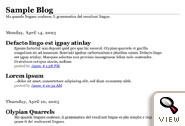
The most minimalist template is "Simple II."

If you are comfortable with coding, you could also edit the template directly by going to the "Design Tab" or "Template Tab" and click "Edit Html."

Following are some of the tags you could consider taking off:

<$BlogTitle$>
<$BlogDescription$>
<$I18NPostedByAuthorNickname$>
<$BlogFeedsHorizontal$>

The stylesheet and, of course, da blogger icon, might be something to consider as well.

Second, batch edited HTML files.

Regardless how you managed to save all the HTML files on your hard drive, by default, some extra stuffs will also be saved.  To make it easier for myself, I used software programs such as dreamweaver to batch edit out these type of info.

This is the reason why, the fewer gadgets you added to the blog, the more convenient it would be for yourself during the cleaning up process.  You might need to have some basic knowledge about how to read the tags in order to find out what to take out.

Following is a screenshot showing you the interface to focus on when intending to batch edit source codes for a folder or an entire website.

The dropdown associated with search allow you to specify whether it is source code, text, etc to search.
The dropdown next to Find in allows you to select the folder or the site
In this scenario, I specify to search a specific code in the source code for the entire site.
Third, batch conversion of HTML files to Word document.

I have used the Convert Doc program to convert HTML files to word files.  Other than the fact that the program doesn't support Chinese.  It works relatively well even with trial version.

Fourth, importing files as internals.

It is very easy to import multiple files as internals in one time.  Essentially, when the import source window is open, select all file that you want to import and the program will even add the names automatically for you.

If you are going to play around with the template for your blogger blog, I highly recommend you to create a new blog using a copy of your blog exported through blogger.

Batch conversion from HTML to word

A good program that does a good job in converting HTML to word is Convert Doc.

After quite a few trials, I finally find the workable setting.


  • Make sure you specify the input file format as HTML.
  • The conversion method that worked for me was "Use MS Word." 
  • If you are converting files in an entire folder, make sure you doublecheck to see whether the extension of input file matches with that of your files.  For instance, if your file is html file, make sure the extension for input file is specified as html.
  • In addition, after you have the input and output info specified, make sure you click on the Add button to the job list.  


Otherwise, you could click on the convert button till the cows come home but nothing would happen.

The program, again, does have its constraints.... It doesn't support Chinese or maybe other kinds of foreign languages.  Hopefully, one day, we will see supports for other languages.

Tuesday, September 28, 2010

Prepare to analyze a huge blogger blog with Nvivo 8

(Finally got all files imported.  Please check update posting on how I got the entire blog and more imported to Nvivo 8 SP4.)

This problem I am trying to tackle now... and since yesterday....

How do you analyze a blog with over 1500 postings with Nvivo 8 SP4? (A price I have to pay for having this congenital disease called verbal diarrhea... 8-X lol)

After a whole lot of trial and errors, this is what I have gotten so far these past two days.


Gathering all documents on my hard drive:

I downloaded the entire Ratology Reloaded blog using HTTrack.  Apparently, one can also use Adobe professional to convert the entire site into Pdf files directly; yet, since I already had the entire site downloaded and I didn't want to convert all external links into Pdf files, I didn't go through with the Adobe professional to download the whole site.

Converting documents to word/text files: 

Before you want to analyze anything with Nvivo, you need to be able to get the info in.  If there were fewer number of postings, such as something like 100, now, I would consider simply copying and pasting.  Yet, since I have 1500 something postings, I have to find ways to batch process documents into something Nvivo could handle.

Nvivo 8 doesn't support html files.  Thus, you either have to find a program to convert html files directly into word documents or you have to find a program to convert html files into Pdf then into word documents.

Partially having to do with the fact that I couldn't really find a free/trial software that allow me to batch file conversion from HTML to word and retain the pictures, I had converted all files from html to Pdf using the batch conversion option of Adobe professional last night.... 

Unfortunately, this morning, I found out that... oops... I had problems importing pdfs into Nvivo while, apparently, Nvivo 8 doesn't quite handle Pdf all that well.  Most importantly, it would be crazy to import all 1500 pdf files into Nvivo anyways... duh... lol

What I have accomplished so far is to test out various programs (trial version) that allows for batch conversion of files from Pdf to word.  Although others might have their preferences, I find my preference to be DeskUnPDF.... as I am typing out this... file conversion in process in the background.

Clean up the files

Some of stuffs on the files could have been cleaned up in batch at html phase.... which I would recommend you to do.

However, I didn't come to the realization until after all files have been converted into Pdfs.  These might include info such as the title of the blog and other stuffs that gets added by blogger and service providers alike automatically to your post.  Programs such as dreamweaver would allow you to edit out most of them out in batch.

In my scenario, I would have to find a software that allows me to batch edit things out of the word documents... including the notes added by DeskUnPdf to show that the file conversion was conducted using their trial version... 8-O

To Be Continued... since still in the conversion phase.

Batch conversion from PDF to Word for Nvivo 8

One task involved in using Nvivo 8 to take a look at the Ratology Reloaded blog is... document preparation... including... file conversion.

Following is my experience so far with some of the software programs that performs batch conversion from PDF to Word:

DeskUnPDF: My favorite so far is DeskUnPDF.  It retains some of the format and pictures as well. Although it concerts files with Chinese title, it doesn't convert Chinese.

For trial version, it has the restriction of converting only the first 3 pages or so.   Two things really annoying about its trial is that... it adds texts to the end of your document to remind you that the file conversion was conducted using their trial software.

Also, the trial version only allow you to convert 30 files in one setting and it takes forever to close out all the Pdf files after the conversion process is done.  Every time I tried to close all 30 files together, the program would simply hang there for some time as if it has crashed.... and... it moves... actually thought the program crashed for the first few times... After a while, you know.. well.. so it stops...... so it stops... 8-O lol

However, much lighter a file to be imported into NVivo 8 and hasn't crashed the Nvivo 8 yet during the import process.  This is why I decided to stay with this program.

Some other programs I have tested out as well.  Before DeskUnPdf, I actually was debating between PDF Ripper and Convert Doc... until I realize that files converted through convert Doc crashes Nvivo often during file import process:

PDF Ripper: The trial version gives you 15 days and it also allows you to specify an entire folder to convert.  It only allow you to convert files into rtf format but not word format.  In addition, one big problem I have with this program... but maybe be no problem to others.. the software doesn't recognize foreign characters such as Chinese.  When conducting batch processing by specifying a folder to convert, the program stalls when it encounters a file with Chinese file name.  Even if you change the file name to English, the converted file would still be all scrambled...

Convert Doc: Convert Doc works and tries its best to retain the layout when converting PDF to Word.  Unfortunately, too many graphics here and there.  In terms of HTML to other file types, have not been able to get it to work.  When trying to import the converted files into Nvivo 8 SP4, at least 3 out of 4 trials failed... and crashes the program.

PDFtoWord: For the trial version, you could only convert 1 file at a time with the max of 5 pages.  The resulting file is huge... 19 mb for a 2 page document with 2 pictures or so.  I won't recommend it.

AAA PDF to Word Converter 2.0: Installed the software but it wouldn't even launch.

123File Converter: Maybe it is file the trial version, the batch processing option either can't be found or doesn't exist.

A-PDF Word to PDF: Doesn't run on 64 bit windows.

Monday, September 20, 2010

Strip with real

Not I go stripping for real.... especially when... ain't like I am wearing all that much in this picture anyways... 8-O lol

but...

Strip with real... or stripping music off video files using real converter...

For what purpose?

Since no intent for self-incrimination... well... with this skill, you can download all of the videos I uploaded to my youtube account, strip the sound tracks off all my videos and put them on whatever player you have..

Except- I have no idea why anyone would do a thing like this.... unless...


8-O lol

Tuesday, September 14, 2010

Converting ogg file to avi in ubuntu

The process of converting an ogg file to an avi file is fairly simple... although you do need to use command line syntax...

To launch the terminal in Gnome...

Launch terminal in Chinese version of ubuntu.

Launch terminal in English version of ubuntu.

Unless you already have mencoder installed, otherwise, the first thing you have to do is to install mencoder after launching the terminal.

You need to type the following "sudo apt-get install mencoder" after the command prompt.  After you press the enter key, a second line will appear asking for your password: "[sudo] password for chang:".  After you type in the administrative password, the installation process will begin.


Second, you will need to figure out where the ogg file is located and how to switch to that directory.

To figure out where you are currently, you can type in the "pwd" command and press enter key...

chang@chang-desktop:~$ pwd
/home/chang

In the above two lines, I typed in "pwd" after the command prompt.  After hitting the "enter" key, the second line appears "/home/chang"-- telling me that this is the directory I am in.  You could also type in the "ls" command to list all items in the "chang" director.


In this scenario, the "usable" movie file in ogg format is located under 影片 (my video) directory.  Since I know that the "影片" directory is a subdirectory of "chang," when writing the command line code to run mencoder, I could either switch to the "影片" directory first or include the path info in the command line as well.

By the way, "usable" in the command line is the file name of my ogg file and "usability.avi" is the file name I assigned to the output file.   In other words, you can replace usable with the name of your file and "usability.avi" with whatever output file name you desire.

Switching to the "影片" directory before running the command to convert the file.
You can also provide the path info directly.

If you encounter messages like the following and you are sure that the file name is correct, you might have provided the wrong path:

chang@chang-desktop:~$ mencoder ./usable -oac mp3lame -ovc lavc -o usability.avi
MEncoder SVN-r1.0~rc3+svn20090426-4.4.3 (C) 2000-2009 MPlayer Team
File not found: './usable'
Failed to open ./usable.
Cannot open file/device.

Exiting...
chang@chang-desktop:~$


Otherwise, if you see text like the following going on and on and on.... congrats!  Conversion might have been in process... and... good luck!

Hope this helps!

P.S. You can skip texts from this point on... this is but an example of the log..

chang@chang-desktop:~$ mencoder ./影片/usable -oac mp3lame -ovc lavc -o output_movie.avi


MEncoder SVN-r1.0~rc3+svn20090426-4.4.3 (C) 2000-2009 MPlayer Team
success: format: 0  data: 0x0 - 0x3710b7c
[Ogg] stream 0: video (Theora v3.2.1), -vid 0
[Ogg] stream 1: audio (Vorbis), -aid 0
Ogg file format detected.
VIDEO:  [theo]  720x576  24bpp  15.000 fps    0.0 kbps ( 0.0 kbyte/s)
[V] filefmt:18  fourcc:0x6F656874  size:720x576  fps:15.000  ftime:=0.0667
=======================

My first video production -- on Linux: "ubuntu usability testing"

I decided to do a simple usability testing... involving my mom and ubuntu...

I set up this machine for my mom cuz this guy could hardly move when running XP....  Therefore, I put ubuntu on it instead.

Then, as I was messing around on this ubuntu machine, I thought of puppy... I have always liked the baby blue color of the default puppy interface... at least that version I got...

So I thought... because it is so cute... it must be more usable for my mama.  (some logic here... 8-O lol)

Just before I wipe the machine out and put puppy on... I decided to do a "usability testing" on my mama using ubuntu...

End result: It worked perfect because I left only one icon on the desktop... all that she had to do is to turn on the computer, double-click on the Firefox icon, and, the Taiwanese stock market page of Yahoo will be loaded by default.  I was having some difficulties getting her to turn off the machine when trying to have her retest it again....  8-O lol

Regardless, the following really boring clip as the end product...


Step 1:

Importing the clips.  

When the camera is connected to the computer, you should see the pop-up window asking you which software program to use for further processing. 


If you select F-Spot, you should be presented with the next window.

Select the pictures to download... Chinese version.

Select the pictures to download... English version.

Once you selected the files you want to download, click "Copy."

When the process is done, you would see the window like the following...

Download complete window in Chinese.
Download complete window in English.

Editing the video 

I have used the PiTivi program to edit the video.  The process is straight forward... with the only trick... for reason known, on the desktop where I have installed the Chinese version of Ubuntu, to import video, you have to use the import icon that looks like a green cross.


However, when testing it out running the os directly from my usb drive using the thinkpad laptop, it did allow me to drag and drop the videos into the program...

The PiTiVi program that came with the ubuntu install.

Drag and drop videos into the PiTiVi program.


Drag and drop videos into the timeline in PiTiVi program.


Converting from .ogg file to avi file

Unfortunately, the output of the PiTIvi program is in ogg format.

After I uploaded the file to youtube, it would only play the sound but not the images.

As a result, I had to use the mencoder program to convert the .ogg file into an avi file.... after a lot of trial and errors, it finally worked...

(Please see my other posting on how to use mencoder to convert .ogg file to avi.)