Wednesday, November 22, 2023

Solutions to the failure to replace English quotation mark with Chinese quotation mark in ChatGPT

In the previous post, I shared the following code:

Replace " with 「 at the beginning of a quoted text.
Replace " with 」 at the end of a quoted text.

However, ChatGPT doesn't always do what it is supposed to do. 
For instance, the following translation totally neglected the commend and continued to use the English quotation mark:

在辦公室外的走廊裡,我試圖以盡可能冷靜的方式開始對話。“我覺得我們應該談談今天早些時候發生的事情。”我盡力應用他們教我的溝通技巧,著重於我的個人感受,避免指責的遊戲。
“是誰給你權利來我的辦公室責罵我......”大砰小姐立即發動了一場攻擊。
“我不是來和你吵架的。我只是想告訴你,我對發生的事情感到相當不安。”我試圖保持專業態度。畢竟,我們都在工作。
“你不高興?那我呢……”

After numerous trial and errors, I found a solution for it. Essentially, cutting down on the amount of text to be translated and following is the outcome.

在辦公室外的走廊裡,我盡可能冷靜地開始了對話。「我覺得我們應該談談今天早些時候發生的事情。」我盡力應用他們教我的溝通技巧,著重於我的個人感受,避免指責的遊戲。
「是誰給你權利來我的辦公室責罵我......」大砰小姐立即發動了一場攻擊。
「我不是來和你吵架的。我只是想告訴你,我對發生的事情感到相當不安。」我試圖保持專業態度。畢竟,我們都在工作。
「你不高興?那我呢……」

If cutting down on the amount of text doesn't work, try to convert the quotation mark using the translated text.

These are two solutions I found so far.

Sunday, November 5, 2023

Code to replace English quotation mark with that of Chinese using ChatGPT

I've been translating my books with the assistance of ChatGPT, which does a good job in converting the English punctuation into Chinese punctuation. However, somehow it seldom replace English double quotation marks with Chinese double quotation marks:

So I asked ChatGPT how it could be done and following is its response:

Replace " with 「 at the beginning of a quoted text.

Replace " with 」 at the end of a quoted text.

Saturday, November 4, 2023

Centered Chinese punctuation

 I have been trying to translate my books into traditional Chinese. Being a novice in typing in Chinese, I use the Pinging method since the bopomofo method requires the user to be familiar with the bopomofo keyboard. 

Why do I mention this?

These two days, I realized that the Chinese punctuation I typed out and translated via ChatGPT were positioned on the lower left side as opposed to centered. I went back to read some Chinese books and found out it seemed to be the conventional practice for the punctuation to be centered.  

Lower left side example: 然後,佛祖退出了這場沒有白兔的茶會。

Centered example: 然後,佛祖退出了這場沒有白兔的茶會。

After all the googling and ChatGPTing, nobody ever mentioned this issue. Also, the replace feature in Words does nothing when I asked it to replace " 。" with "。".

Just now, I decided to check in Word the specs of the font and realized that all that I had to do is to Change the font to PMingLiU. I selected all and changed the font to PMingLiU and the problem was solved.

Monday, January 1, 2018

A cool 404 Error page

Since the day I found myself on the wrong side of the digital divide, even changing the battery for water heater is considered high tech. 

The following 404 error page is nothing high tech though the message itself is technically funny enough--for me. lol


Saturday, February 4, 2017

Windows not recognizing camera connected via USB? (Check pix number on your card.)

My laptop sort of died and I had to reinstall Windows 10. It's a shitload of job to get things together but I thought, "Alright, everything was finally set."

Then, this demonic problem happened. I tried to download photos from my SDHC Card and realized that I had to reinstall the Canon utilities for my camera.

All was installed but programs wouldn't go and my princess laptop insisted to refuse recognize my princes camera--even when the Canon installation DVD was running the setup program.

Sure, as House might tell you, there might be different etiology for the manifestation of the same symptoms. No doubt following are some of the probable causes of the recognition problem:
1. Cable connecting the camera and computer
2. USB port
3. Windows 10 64 bit OS compatibility issues
4. Driver issue for my Canon PowerShot camera
5. Other hardware or OS issue since I did bring this baby laptop back from the RIP state.

I, of course, went through one forum after another. People had similar problems but no place, not even those hosted by Microsoft or Canon.

I skipped the keyword "communication error" since I didn't see the term on either the computer or the camera screen. So I thought.

Except, when I restarted the camera a few times later, I finally noticed the "communication error" flashing at the bottom of the camera viewer like ships passing in the dark sea.

The error code shortly led me to the plausible cause, whose existence I still do not believe.

You can't connect a camera to the computer if you have more than something like 1000 pictures on it.

I switched my SDHC Card to one with fewer number of pictures on.

Voila. That damn princess laptop finally recognized the princess camera.

1000 or else number of photos? What kind of issue is that to cause recognition failure independent of the versions of MS OS and brands of cameras? (Based on what I gather from all discussion forums.)

OMG and hope it helps someone.


Sunday, March 20, 2016

Dark Net

I didn't know how deprived I have been feeling on the low tech side.


Then, today I heard of the Dark Net and decided to give it a try--on FB on that side.

Look at how messages were routing around -- with IP's blacking out. Damn cool! I virtually went all around Europe and more ....

The power of the dark side doesn't get me rid of my paranoid delusion that everything I do is monitored; yet, feel darn good playing with it anyways.

Now I can descend from cloud 9 and get back to work. 8-X lol

Tuesday, July 14, 2015

My split existence--divided self and google stats

I have seen this before though paid it no mind.

Today, I saw it again ... when clicking on a post in my blog using Chrome on Windows, simultaneously, there would be a record of five clicks through Firefox on Linux.

To test my hypothesis, I licked on one more link to a post in my blog, and five more clicks through Firefox on Linux appeared on the record.

To reconfirm my finding, I clicked on yet another post and got the result.


So I concluded--my split existence is more than in the department of mental, also physical.

Oh, where art thou, my divided selves!


Monday, February 2, 2015

Seeing is believing--really?

If you lived in France, and I tell you that the google doodle on the google search page today is a picture by a Taiwanese artist, Mr. Chen Cheng-Po, who was born in the Qing dynasty, grew up during the Japanese Occupation Period, and died in the 228 incident.

Chen Cheng-po's 120th Birthday

You'd say that I am crazy because this is what you see:

110th Anniversary of first publication of Bécassine

Yet, for everyone else such as those in the US, they'd say we both are crazy because the good old google icon is what's sitting on the webpage:


The reality is that nobody else is crazy save for me; even so, I am not seeing things not there.

What happened is that it's not until today that I realize that some gooogle doodles can only be seen in specific regions.

Think it's pretty cool a discovery--at least for me.

Friday, August 8, 2014

How I add an arrow sign in Word for my kindle book

Spent the past hour or two trying to figure out how to add an arrow sign for my kindle book and came up with this extremely low tech solution ...

-->

Though low tech, it works on the majority of the Kindle hardware.


Tuesday, July 29, 2014

Strange codes on word printout?

Just encountered this issue. The text in word looks all fine in side the program.


However, when I try to print the document out, I am faced with code, or field codes more specifically. Moreover, when printing the document out, it's the same gibberish codes that got printed.


Ended up, this is because I must have checked on the "Print Field Codes instead of their value" previously when attempting to troubleshoot something else.


The issue is easy to resolve.
1. In word, click on File->Options
2. Inside of the Word Options window, click on Advanced.
3. Under the "Advanced pptions for working with Word," scroll down to Print and uncheck "Print field codes instead of their values."

C'est ça! Bon Chance!

Sunday, July 27, 2014

Set up Canon Pixma printer when the router has no WPS button

I went to get a new D-LINK DIR-612 router today because the old router is really dead since I can't seem to be able to wake it up. Setting the wireless network up was a breeze.

The problem came when I was trying to connect the Canon Pixma printer to the wireless network, as directed by the running text on the screen of the printer "Press WPS button for about 5 seconds ..." while this model doesn't come with a WPS button.


Ended up, this is a step I can skip by simply pressing the "Stop" button on the printer.

After pressing the "Stop" button, I saw something like the following screen about Standard setup.


After pressing OK, the printer search automatically for access points near-by and all that I had to do was to use the arrow keys (or not) to locate my wireless network and press OK again.


Since it's a secured Wifi, it then ask me to entire the passphrase. When it's entered, mission seemingly impossible is completed ... setting up Canon Pixma printer when the router has no WPS button (while the printer asked for it).


Tuesday, July 22, 2014

Missing Quick style function in Picture Tools (Format) in Word?

I inserted the same picture in two word documents and was given different types of format tools.

 One has the quick style selection under the Picture Tools (Format) tab.


One doesn't have it.


After monkeying around, I realize that, in order to see the picture tools, you need to use the "Insert Picture" function provided by word as opposed to dragging the picture in directly onto the document.


C'est ca!


Friday, July 18, 2014

Continuous Section Break turned into Next Page Section Break?

In order for me to use show different text on the odd and even pages, I had to create a lot of section breaks, with some "Continuous" ones and others, "Next Page."

Unfortunately, there was this one "Continuous" section break that stubbornly insists on turning itself into a "Next Page" section break. After testing all around, I found out that the footnote in the next paragraph was the culprit.


So I found out that if I remove footnote 146 in the pix above, the continuous section break will function the way it is supposed to be.


Though it might not be the most elegant way to tackle it, at least this workaround serve the purpose for me and help me answer the question, "Why on earth is this happening to me?" 8-X

Tuesday, July 15, 2014

Automatically updating cross-reference info in footnote or endnote

If you insert document information using the cross-reference function of MS word, information such as page number or heading title could be inserted automatically in the main texts or in the footnote/endnote section.

Cross-reference
You have to be careful though because the automatically inserted information such as page number does not get updated "automatically" after you make changes to the file.  To demonstrate it to you, I deleted the first 10 pages of my file but the information in the footnote remained the same.

footnote
It's easy to get the issue resolve.

First, put the cursor inside of the footnote section and select all (ctrl+A).
Second, press F9 and a window will pop up warning you that the action is irreversible.


After you press yes, the information will get refreshed, and the updated and correct information will be shown.


So ... select all and F9. That's it.

Sunday, July 6, 2014

Canon PowerShot Communication Error?

Tried to connect my PowerShot SX280 HS to the computer and saw this error message at the bottom of the screen: "Communication Error."

Apparently, when it happens, it's because there are more than 1000 pictures on (the disk of) your camera. What you have to do to get the pictures downloaded is to either using a card reader to get the pictures off or making sure there are less than 1000 pictures.

An issue known by Canon.

Sunday, June 29, 2014

150 Mbps vs. 300 Mbps in router language?

Learn something about routers today after realizing a question I had no idea before.

So I went to find a replacement router for this old one I am using, which was atama-shorto when it was given to me by my sis. This is the first time for me to purchase a router since all the routers I have used so far (at least for over a decade) were given to me or lent to me.

When browsing through the routers today, I saw these familiar things like 150 Mbps, 300 Mbps, etc.  Instinctively, yours illiterate associated the numbers with the connection speed I get from my ISP and thought these terms as the bottleneck to the imaginary terabyte (keep the change) connection speed my computer is connected to the world with (The reality is: 4M/1M. Forget about terabyte. Long gone were the days of merely gigabyte. Oops lol).

Ended up, one of the vendor kindly let me know the misconception I have about the router-ly 150 Mbps, etc. I figure, what that number of 150 tells you is how much data can be transmitted within the wireless network created by the router. Of course, the capacity of your wireless card is one of the determining factors on whether that might data could be transferred.  Also, just because your router is capable of doing the 150 Mbps thing doesn't mean that your connection speed to the internet out there is 150 Mbps. Why? Well, the download/upload speed of my internet connection provided by my ISP is supposed to be 4M/1M. (Please verify the info provided in the previous link and check this post for the differences between binary and numerical systems).

To end my mumbo-jumbos short of throughput for the day, please check the following for more info concerning Wifi speed and frequency--with netgear products as examples.


Thursday, June 26, 2014

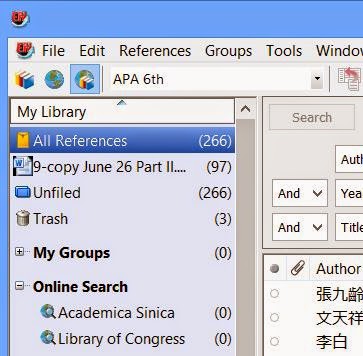
Endnote, Where did the label for citations in my word document go?

Oopsy ... so long a title, although it's an issue I came across and was sort of driving me nuts: the inconsistency in the Endnote interface.

I know Endnote had given me this label under "All References" before. However, it seems to reveal itself to me at its own will, if not leisure.


For instance, in the following snapshot, the label is gone.


Ended up, the reality might have been related to the fact that I turned Instance Formatting Off.

All that I had to do was to click "Update Citation and Bibliography" and wait patiently for the programs to do whatever they need to do and to take however amount of time.


Afterwards, voila, I was not seeing things nonexisting (though I have done that before lol 8-X)! Endnote does give me info on the citations in my word documents!


C'est ca! Hope it helps!

Wednesday, May 7, 2014

Reassign a new style to texts with the same style

Found a solution to style-sheet-related problem, which almost led me to through my ratology book out of the window.

If you say, "What's the big deal? Just select the texts and reapply the style!" Check the 16-page Table of Content file, which is generated based the heading info. I surely don't have the life to check through the whole book and to verify the headings that, when put in a file, is 16 pages long.

I would have loved to find an interface, which would allow me to change the codes associated with the styles directly ... like replace "Heading 61" with "Heading 6." Unfortunately, my understand of word is not so superb. I did find a way out to identify the irregulars and found a way to reassign a new style to multiple items of the same style.

In a nutshell, I changed the spec of Heading 61 so that it's style is based on the built-in Heading 6. Then, I revert Heading 61 to Heading 6 and deleted the style of Heading 61.

Following shows you how I got it done step-by-step.

1. Show the Style Area Pane in either Draft or Outline document view.
2. Launch the Style window.  You might also to first identify which headings seem irregular. (This is none-essential to the task but if you click on the heading in the Style Area Pane, it shows you the associated text in the Outline view.)

3. In this example, I will show you how I apply heading 6 to all items affiliated with Heading 61. In order to do it, I find Heading 61 in the Style window, click on the arrow on the right-hand side, and select Modify from the drop-down menu.

4. The Modify Style window opens. In this scenario (though don't know about yours), the style of Heading 61 was based on "no style."

5. What I have to do is to assign the built-in Heading 6 as the style it's based on by selecting Heading 6 from the drop-down menu.  Click OK to close the Modify Style window.

6. After the Modify Style window is closed, the change of the style for Heading 61 is reflected in the Style window. Then, click on the arrow to the right of Heading 61 to show the drop-down menu, click on "Revert to Heading 6...".


7. A window pops up asking whether I want to delete Heading 61. If you want to keep the style associated with Heading 61, you surely can save a copy of it.  As for me, I will gladly click on OK.


8. Once I click OK, the pop-up window will close, Heading 61 deleted from the Style window (and the stylesheet), and all items previously applied with Heading 61 is now reassign to the style of Heading 6.


C'est ca!

Show Style Area Pane in World 2010

How do you show the styles you have applied to your writing in plain sight as opposed to clicking on everything and check each individually through the Style Window?

It could be done through the "Style Area Pane."

Following is the step-by-step instruction.

1. Click on File and Options.

2. Inside of the "Word Options" window, click "Advanced" and scroll down to the "Display" section. Change the value of "Style area pane width in Draft and Outline views" to something larger than 0. In this example, I have changed to 1". Click "OK" at the lower right side to save the change and close the window.
 

3. Please be reminded that the Style area pane can only be seen in Draft and Outline views. If you are not viewing your document under either views, make sure you click on the View tab and switch to either "Outline" or "Draft" type of document view.


4. In this example, I elected to view the document using the Outline view. The area on the left-hand side is the Style Area Pane showing the heading styles I have applied to the outlines.


C'est ca!

Saturday, May 3, 2014

Finding where "MS Word endnotes" are in main body?

Not quite sure whether the heading really describes what I means.

Essentially, I am working on an over 400-page document with over 100 endnotes (the MS Word footnote and endnote kind of endnote as opposed to the citation program Endnote kind of endnote).

I had great difficulties figuring out how to find the endnotes in text.

Ended up, it's as simple as a clicking an existing button in the MS word interface.

1. Select the endnote and click on the "References" tab and click on the "Show Notes" icon.


2. Abracadabra! Word now shows you where the note is in text.


3. Now that you are in the main text and you want to see the endnote, what do you do to get to that specific note?  Click on the "Show Notes" icon again.

C'est ca!